

What Are the Essential Tech Accessories for Remote Work?
Last Updated: October 26, 2026
Quick Summary
The essential tech accessories for remote work are the ones you touch every day and that improve how you see, hear, type, or connect. Prioritize a headset with a good microphone, a laptop stand with external keyboard and mouse, a USB-C docking station, and lighting placed in front of you. Fix lighting and screen height before spending on premium cameras or chairs.
- Workers rated their ease of adapting to remote-work technology an average of 8.7 out of 10 in a 2026 survey.
- Fix lighting before upgrading your webcam; 1080p at 30fps is the sensible baseline.
- A stand lifting the screen roughly 6 to 8 inches is enough for most people.
- Follow the 20-20-20 habit: every 20 minutes, look about 20 feet away for 20 seconds.
- Match or exceed your original charger's wattage so a dock or charger does not underpower your laptop.
Table of Contents
- Essential Tech Accessories for Remote Work: What Actually Earns Desk Space
- The Best Webcam for Remote Work (and the Lighting That Makes It Look Good)
- Noise-Canceling Headphones for Work: The Upgrade You Will Notice First
- A USB-C Docking Station for Laptop Setups: One Cable, Fewer Problems
- Ergonomic Accessories for Home Office Comfort That Hold Up Over Time
- Power Resilience, Security, and Travel-Ready Extras Most Roundups Skip
- How to Choose Remote Work Accessories by Budget and Work Style
- Building Your Setup: Where to Start Shopping
- Frequently Asked Questions
Essential Tech Accessories for Remote Work: What Actually Earns Desk Space
Remote work has a clutter problem. Most home offices fill up with gadgets that seemed useful for a week and now sit in a drawer. The essential tech accessories for remote work are the ones you touch every single day, and the test we apply at Blue Point is simple: if a device does not improve how you see, hear, type, or connect, it does not belong on your desk.
A 2026 Remote Work Well-Being Survey from CoworkingCafe's remote work well-being research found that workers rated their ease of adapting to remote-work technology an average of 8.7 out of 10, with nearly half giving it a perfect score. That comfort level is encouraging, but it also hides a trap: people adapt to mediocre gear instead of replacing it.
Below, we break down the accessories that hold up over years of daily use, what to look for in each, and how to choose by budget and work style. The first thing most roundups get wrong is treating every accessory as equally important. They are not.
The Best Webcam for Remote Work (and the Lighting That Makes It Look Good)
The best webcam for remote work is a 1080p model with good low-light performance and a clean mounting option, paired with a light source placed in front of you rather than behind you. Resolution matters less than sensor quality and where the light falls on your face.
Here is the practical rule we give readers: fix lighting before you upgrade the camera. A mid-range webcam with a window or soft lamp in front of you will look better than a premium webcam with a bright window behind you.
- 1080p at 30fps is the sensible baseline; 4K is rarely needed for video calls
- Autofocus and a wide-enough field of view keep you framed without constant adjusting
- A privacy shutter is worth insisting on
- A ring light or desk lamp at face height removes shadows better than most built-in corrections
Watch out: buying a 4K webcam and skipping lighting is the most common wasted upgrade in home offices. The camera cannot fix a face lit from behind.
Noise-Canceling Headphones for Work: The Upgrade You Will Notice First
Noise-canceling headphones for work deliver the most noticeable daily improvement of any accessory on this list. If you are ready to upgrade, this wireless Bluetooth open-ear headset is a concrete option to consider. Active noise cancellation cuts steady background sound, and a headset with a boom or beamforming microphone fixes the "you sound far away" problem that plagues laptop audio.
Two features decide whether a headset survives a full workday: battery life measured in hours, not minutes, and a microphone that suppresses room echo. Comfort matters just as much. Clamping force and earcup material determine whether you can wear a set for a four-hour block of calls.
Best for: anyone on back-to-back calls or working near a noisy street. Skip if: you work alone in a quiet room and already have decent wired earbuds.
A USB-C Docking Station for Laptop Setups: One Cable, Fewer Problems
A USB-C docking station for laptop setups replaces a tangle of adapters with a single connection for your monitor, keyboard, mouse, and charging. The payoff is speed: you sit down, plug in one cable, and everything wakes up.
Compatibility is where buyers get burned. Before buying, check three things:
- Power delivery wattage your laptop requires
- Display output your monitor uses (HDMI or DisplayPort) and how many screens you run
- Port count for USB-A devices you still own
A dock that under-delivers power will charge slowly or not at all under load. If your desk also holds a phone and a watch, a multi-device charging stand can cut the remaining cable clutter further.
Ergonomic Accessories for Home Office Comfort That Hold Up Over Time
Ergonomic accessories for home office comfort are the ones that change your posture, not just your desktop.
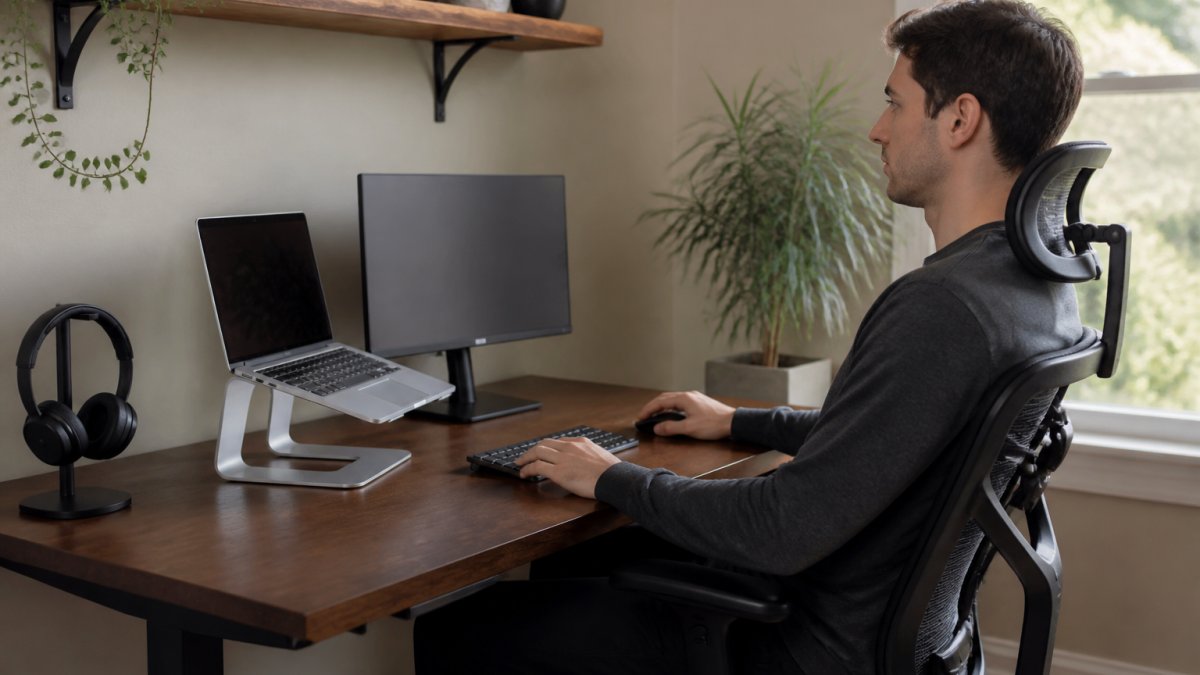
The laptop stand is the keystone accessory. Raising a laptop to eye level almost always forces an external keyboard and mouse, because typing on a raised laptop deck puts your wrists in extension.
Match input devices to your body, not the other way around. A compact keyboard keeps your mouse hand closer to your torso, which reduces shoulder reach.
Chairs and footrests solve specific problems. A chair earns its price through adjustable seat height, seat depth, and lumbar support that lands in the small of your back, not through padding alone.
Address eye strain as an ergonomic issue, not a monitor spec. The common pattern is a screen that is too bright for the room, too close, or viewed for long blocks without a break.
Cable management is ergonomics too. A tray or under-desk channel keeps cords off the floor and stops the slow creep of clutter that makes a workspace feel chaotic. It also prevents the small daily friction of untangling a charger before a call.
A common mistake is buying an expensive chair first and ignoring screen height. Neck strain usually starts at the monitor, not the seat.
Power Resilience, Security, and Travel-Ready Extras Most Roundups Skip
Power resilience and security accessories are the gap in most buying guides. A battery backup for your router and a surge protector protect a workday from a brief outage. A privacy screen and a webcam shutter protect you in shared spaces. A travel charger and a certified wireless charging pad keep the same setup working from a hotel room.
Accessibility deserves a mention here too. A larger monitor, a keyboard with high-contrast keys, and voice or captioning software turn a workable setup into an inclusive one. These are not niche extras; they are the difference between a setup someone tolerates and one they can use for hours.
How to Choose Remote Work Accessories by Budget and Work Style
Choosing by budget and work style beats choosing by brand. Start with your call volume and screen time, then spend in that order. The table below is a starting sequence, not a shopping list, the compatibility notes underneath it are what keep you from buying gear that will not work with the laptop you already own.
| Priority | If you... | Buy first | Hold off on |
|---|---|---|---|
| Calls all day | Live on video meetings | Headset with good mic, lighting | 4K webcam |
| Two-screen work | Juggle documents and apps | Docking station, second monitor | Portable monitor |
| Hybrid schedule | Split time between office and home | Travel charger, portable monitor | Full desk dock |
| Tight budget | Are setting up a first workspace | Laptop stand, keyboard, mouse | Premium chair |
| Shared space | Work near family or roommates | Noise-canceling headset, privacy screen | Open-back headphones |
Check compatibility before you check price. The most expensive accessory is the one you cannot use. Three specifications decide whether a dock, monitor, or charger will work with your laptop:
- Power delivery wattage. Your laptop's charger lists the wattage it expects. A USB-C dock or charger that delivers less will charge slowly or not at all under load, and some laptops will refuse to charge from an underpowered source. Match or exceed the original charger's wattage.
- Display output and multi-monitor support. Confirm whether your laptop's USB-C port supports video output (not every USB-C port does), whether the dock uses HDMI or DisplayPort, and how many external displays your laptop can drive. Many laptops support one external display natively and need a dock with DisplayLink or similar technology for a second.
- Operating-system compatibility. Some docks, keyboards, and webcams ship with software for one operating system only. Check the manufacturer's support page for your OS version before ordering, especially for features like programmable keys, camera controls, or multi-device switching.
Budget tiers, in plain terms. A starter setup, laptop stand, wired or basic wireless keyboard and mouse, and a decent headset, covers the essentials for a first remote role. A midrange setup adds a USB-C dock, a second monitor, and a webcam with a privacy shutter. A premium setup adds a higher-resolution display, a multi-device charging stand, and a battery backup for the router.
Work-style adjustments. Video-heavy roles should weight microphone quality and lighting over camera resolution. Mobile and hybrid workers should weight port weight, charger size, and a portable monitor they will actually carry. Focus-intensive roles should weight noise cancellation and a clear, uncluttered desk over extra screens.
If you are comparing options at a set budget, our curated electronics and accessories collection groups products so you can weigh them side by side.
Building Your Setup: Where to Start Shopping
Start with the accessory you will touch most: your audio. Then fix screen height, then connectivity, then power and travel gear. That order matches how much each item changes a working day.
Blue Point exists to make that sequence easier. Our full electronics category gathers tech accessories in one place, so you are not bouncing between five stores to assemble a desk setup. We focus on a curated selection rather than an endless scroll, which means fewer near-identical options to sort through.
The honest limitation: we do not stock every specialty item, and for unusual compatibility needs you should confirm specifications before ordering. For everything else, the goal is simple. Find what you need in one place and shop with confidence.
Frequently Asked Questions
What tech accessories do you need for remote work?
Start with the items that change how you work every day: an external monitor, a webcam with decent lighting, a microphone or headset, a keyboard and mouse, and a laptop stand. From there, a USB-C docking station cuts cable swapping, and noise-canceling headphones protect focus during calls. A 2026 Remote Work Well-Being Survey found workers rated their ease of adapting to remote-work technology 8.7 out of 10, so most people pick these up quickly. Buy the core first, then add remote work accessories as your budget allows.
Do remote workers need an external monitor?
An external monitor is usually the highest-value upgrade after a reliable laptop. A second screen reduces window switching and gives you room for a document plus a video call at once. If you split time between a desk and travel, a portable monitor covers both cases. Check the ports first: if your laptop has limited connections, pair the monitor with a USB-C docking station for laptop setups so display, charging, and peripherals run through one cable.
How can I improve my home office audio without spending much?
Fix the microphone before the speakers. A wired headset or a USB microphone placed close to your mouth removes most of the room echo that makes calls sound poor. Noise-canceling headphones for work help on your end by blocking background sound, but they do not improve what colleagues hear. For meetings, close doors and windows, add a rug or soft furnishings to reduce echo, and keep the mic off hard surfaces. These steps cost little and often outperform a more expensive microphone in a bare room.
What should I check before buying a docking station or accessories for my laptop?
Confirm three things: your laptop's port type, the power delivery it needs, and how many displays it supports. A USB-C docking station for laptop use only works at full speed if the laptop port supports video and charging over USB-C. Check the monitor resolution and refresh rate the dock handles, plus how many USB-A and Ethernet ports you actually use. Compatibility details are listed on product pages, so read them before checkout rather than after.
Building a home office that actually works is less about buying more and more about buying in the right order. Blue Point offers a curated selection of quality tech accessories with one-stop shopping, so you can equip your workspace without the guesswork. Get started with Blue Point and build a desk setup that earns its space.
